When setting up a refurbished MacBook for the first time, one small but important step can make a big difference to your user experience: selecting the correct keyboard layout.
That’s exactly why Swappie created this setup guide, a quick and easy visual guide designed to help you set up your MacBook keyboard correctly during the initial setup process.
Why setting up your Macbook Keyboard correctly matters
Refurbished MacBooks are carefully prepared for their next owner, including installing the correct physical keyboard for the customer’s region. However, during first-time setup process, sometimes users still need to manually confirm the correct language and keyboard layout in macOS. If the wrong layout is selected, keys may not type the expected characters. For example:
- Special symbols may appear incorrectly
- Certain letters may be swapped or missing
- Keyboard shortcuts may not work as expected
- Typing can feel confusing and frustrating
The image below helps you avoid this issue by guiding you through the setup process step by step.
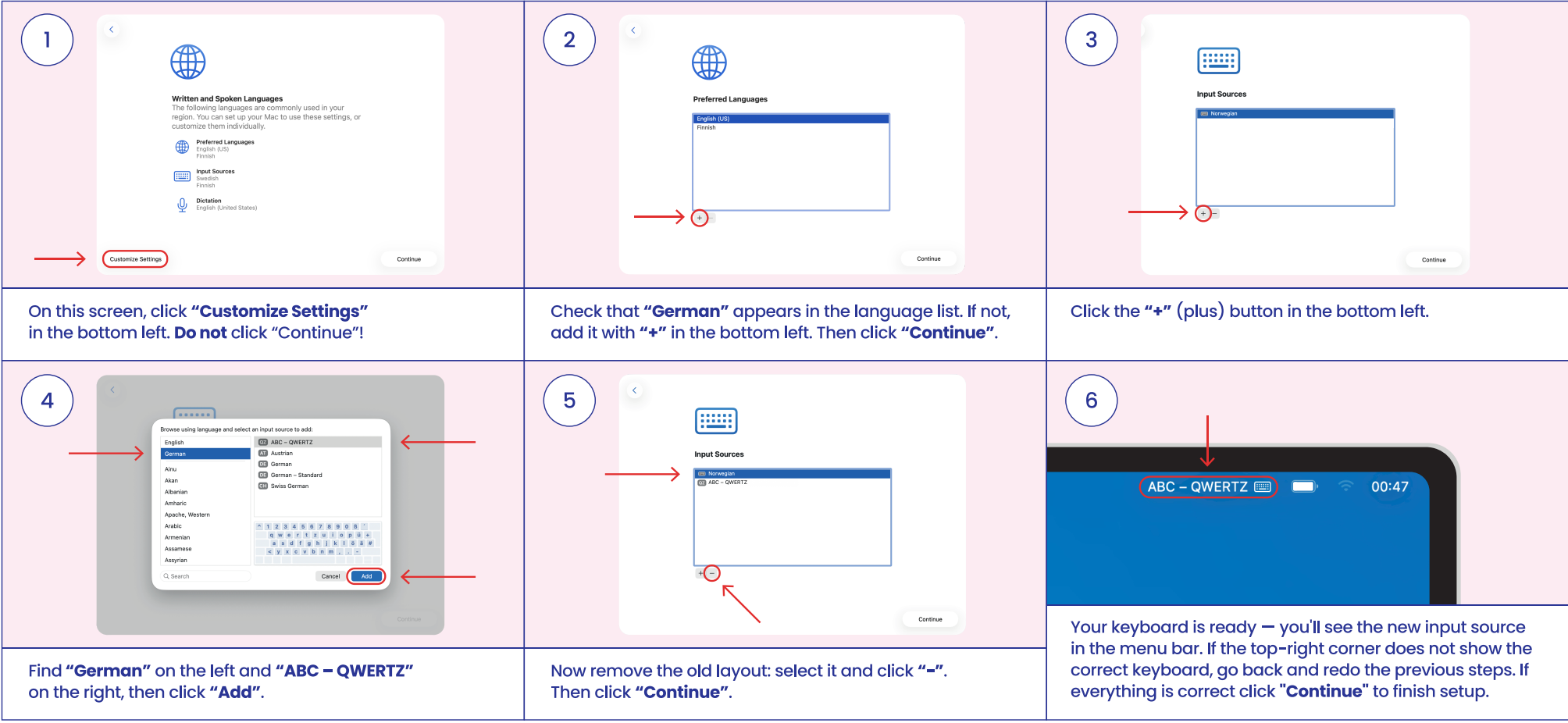
Step 1: Accessing the Hidden Customization Options
- What to do: Continue through the initial setup screens until you reach the “Written and Spoken Languages” screen.
- The warning: On this screen, click “Customize Settings” located in the bottom left corner. Do not click “Continue”! Clicking continue will bypass the exact settings you need to change.
Step 2: Verifying Your Preferred Language
- What to do: Once inside the customized settings, you will see a screen labeled “Preferred Languages”.
- What to look for: Check the language list to ensure “German” (or your target language) is displayed.
Step 3: Selecting the Correct Layout (ABC)
- What to do: You will now be on the “Input Sources” screen. Click the “+” (plus) button in the bottom left corner again.
- The Specific Settings: In the pop-up window, locate and select “YOUR COUNTRY/LANGUAGE” on the left-hand column. On the right-hand column, specifically select “ABC”. Click “Add” to confirm.
Step 4: Removing the Default Keyboard Layout
- What to do: To stop macOS from accidentally switching back to the old layout, you need to clean up your input list.
- The Action: Highlight the old keyboard layout from the list and click the “-” (minus) button at the bottom to delete it. With only “ABC” remaining, click “Continue”.
Step 5: Final Verification in the Menu Bar
- What to look for: Look at the very top-right corner of your Mac’s screen next to the clock (00:47 in the example). You should see a text indicator in the menu bar that says “ABC”.
- Troubleshooting: If the top-right corner does not display the correct layout, do not proceed. Go back and redo the previous steps. If everything matches the physical keyboard perfectly, click “Continue” to finish your setup.
Once these setup steps are complete, your refurbished MacBook is fully configured and ready to use. At Swappie, we want every customer to enjoy a simple and stress-free start with their refurbished device. This setup guide is designed to help you get there quickly, so you can spend less time adjusting settings and more time enjoying your MacBook.
Frequently Asked Questions (FAQ)
Why is my MacBook typing the wrong symbols or characters?
This usually happens when your MacBook’s software keyboard layout does not match the physical keyboard installed on your device. Selecting the correct input source during setup ensures that every key types the correct character.
What if I accidentally clicked “Continue” instead of “Customize Settings”?
Don’t worry you can still change your keyboard layout later.
Simply go to:
System Settings → Keyboard → Input Sources
From there, you can add the correct keyboard layout and remove any incorrect ones.
Can I change my keyboard layout after setup is complete?
Yes. macOS allows you to change your keyboard language and layout at any time through System Settings. This is helpful if you selected the wrong layout during the initial setup process.
Why is my MacBook set to English if my keyboard is German?
The display language and keyboard layout are two separate settings.
Your MacBook can display macOS in English while still using a German keyboard layout such as ABC – QWERTZ.
How do I know if my keyboard layout is correct?
Check the menu bar in the top-right corner of your screen.
If your keyboard is set correctly, you should see the layout indicator display ABC – QWERTZ (or your selected regional layout). You can also test this by typing special characters like Z, Y, ä, ö, ü, or ß to confirm they match the printed keys.
What should I do if the correct layout is not available?
If your preferred keyboard layout does not appear in the list, click the “+” (plus) button in the Input Sources menu to search for and add it manually.
What if my keyboard still doesn’t work correctly after setup?
If your keyboard layout still does not match your physical keyboard after following all setup steps, try restarting your MacBook and checking the Input Sources settings again. If the issue continues, please contact Swappie support for further assistance.
What to do if you already finished setup with the wrong layout
If you clicked “Continue” through the initial setup and now your keyboard is typing the wrong characters, don’t worry — you don’t need to reset your MacBook. You can fix the keyboard layout from System Settings at any time. Here’s how.
Step 1: Open Keyboard settings
Click the Apple menu in the top-left corner of your screen and choose System Settings. In the sidebar, scroll down and click Keyboard.
Step 2: Open Input Sources
In the Keyboard panel, look for the Text Input section and click Edit… next to “Input Sources”. This opens the list of keyboard layouts currently installed on your MacBook.
Step 3: Add the correct layout
Click the “+” (plus) button in the bottom-left corner of the window. In the pop-up, find your country or language in the left-hand column, then on the right hand column, select the layout matching your keyboard, such as ‘German’ or “German – Standard” for a German keyboard. Click Add to confirm.
Step 4: Remove the incorrect layout
Back in the Input Sources list, select the old, incorrect layout and click the “–” (minus) button to delete it. With only the correct layout remaining, macOS won’t accidentally switch back.
Step 5: Check the menu bar
Look at the top-right corner of your screen next to the clock. You should see the indicator for your new layout (for example, ABC – QWERTZ) If you don’t see it, make sure ‘Show Input menu in menu bar’ is ticked in the Input Sources panel. Try typing a few special characters to confirm everything now matches your physical keyboard. For example, if you have a German layout, try pressing the key that should produce Ü or ö
A note on display language
The keyboard layout and the macOS display language are two separate settings, so fixing one doesn’t affect the other. If macOS is also showing in the wrong language, you can change it in System Settings → General → Language & Region. After changing the language, you’ll need to log out and back in (or restart) for the new language to apply across the system.