With the price of tech climbing due to high demand for chips, buying refurbished is becoming a more popular alternative to buying brand new machines. But because of that high demand, it’s easy to be duped or scammed when buying a refurbished MacBook. Here are the five things to check when setting up your MacBook:
1. Make sure your device isn’t still linked to the previous owner’s Find My
Open Find My and check for any unfamiliar Devices, People, or Items, as these could be tied to a previous owner. The last thing you want is someone accessing your location remotely.
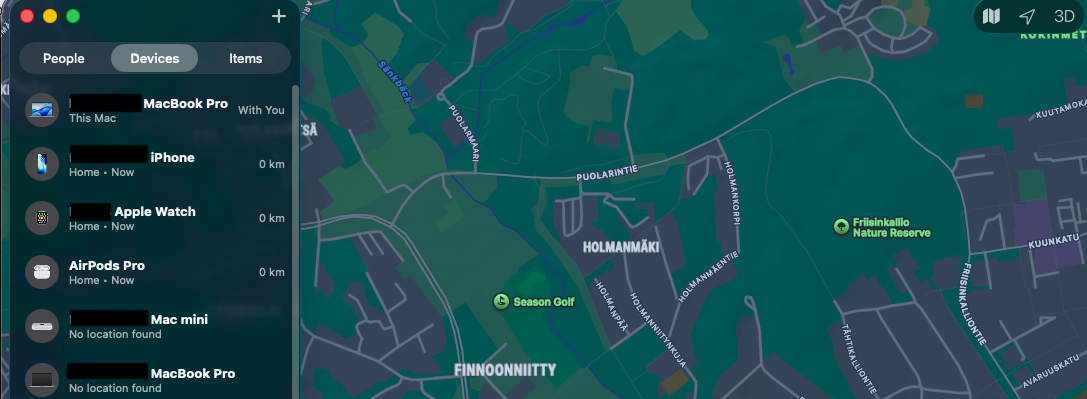
We take data privacy very seriously. If you’ve bought a Swappie Refurbished MacBook, you can be sure that all previous data and tracking has been wiped from every MacBook.
2. Check the battery condition and capacity
Head to Settings → Battery → Battery Health. Ideally, the Battery Condition should show “Normal”, and a Battery Capacity of 85% or above is good. According to Apple, “a normal battery is designed to retain up to 80% of its original capacity at its maximum cycle count when operating under normal conditions.”
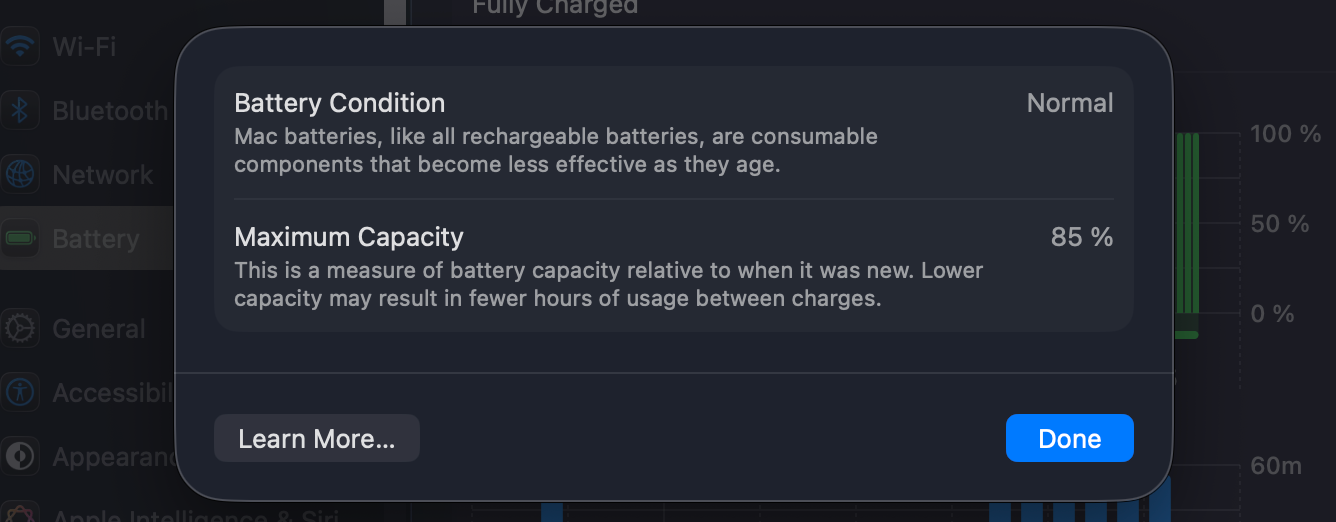
If you plan to use your MacBook on the go without it being plugged in, a Maximum Capacity of 85% or above is better. At Swappie, all refurbished MacBooks come with at least 86% capacity.
3. Check the macOS version
As with any Mac, refurbished or not, check Settings → General → Software Update and get it onto the latest version it supports. One thing worth knowing: a refurbished MacBook can sit in inventory for a while before it reaches you, so there’s a small chance you’ll need to update the OS.
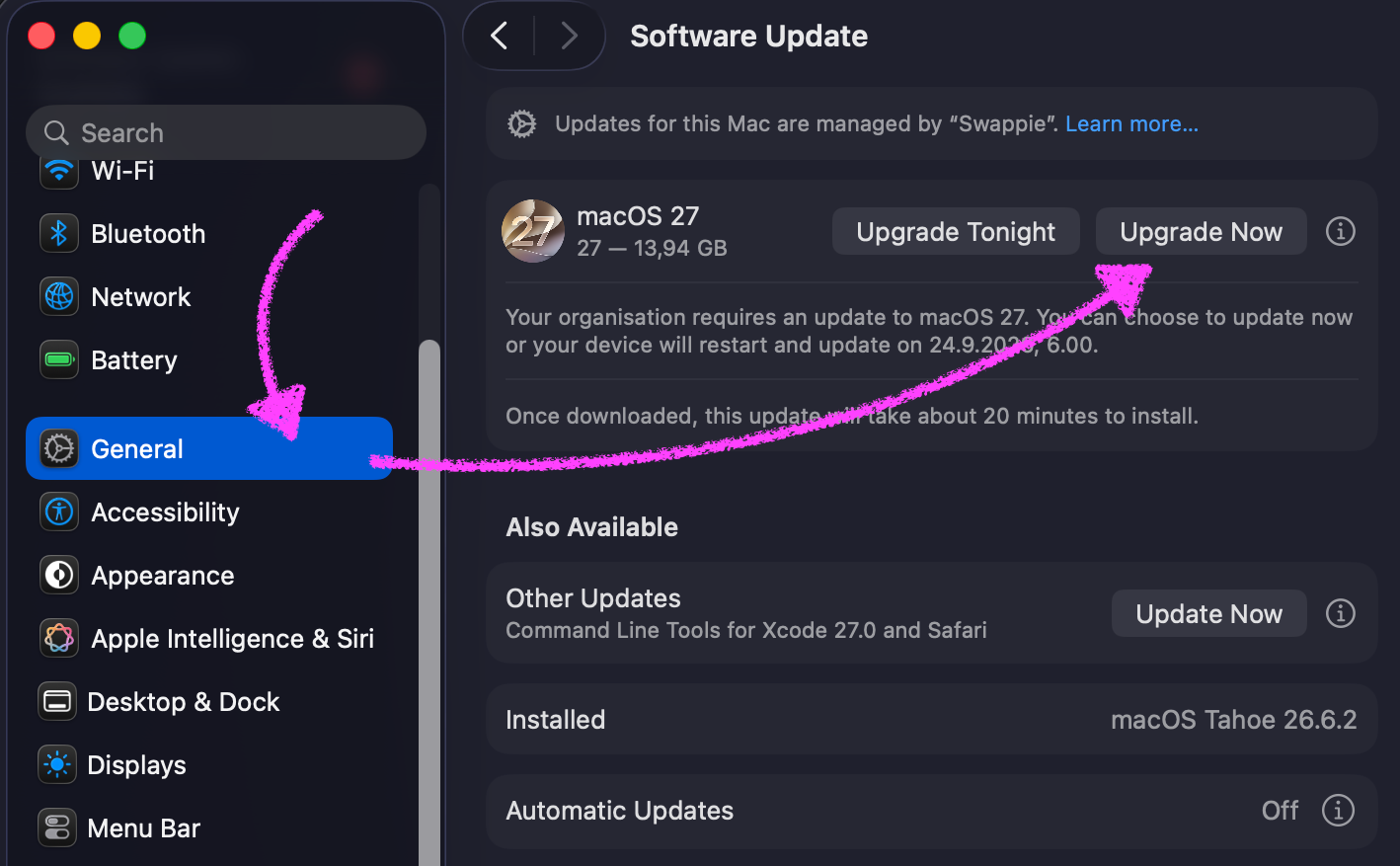
Swappie refurbished MacBooks come with the latest macOS version available when our technicians prepare them for sale, not the version they originally shipped with from the factory, since we erase and reinstall the OS during the refurbishment process.
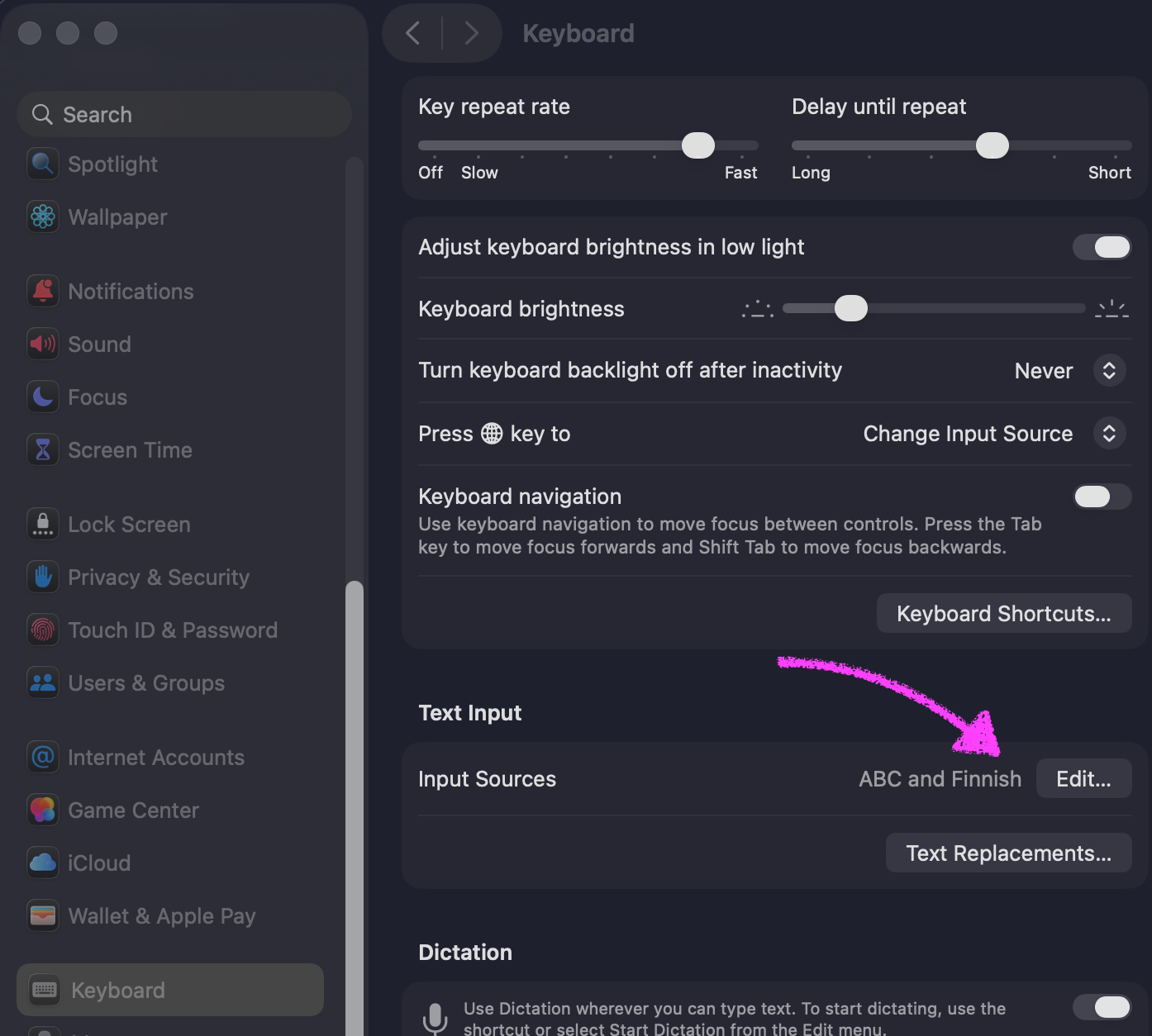
4. Text input and keyboard language
This one’s easy to skip, and it matters more on a refurbished MacBook because you don’t always know which country it originally came from. Check Settings → Keyboard → Text Input and confirm the layout is the right language. A five-second check now saves you hunting for the @ symbol in the wrong place later. If you’re not sure, our help centre has a handy guide on setting up your keyboard.
5. Check the chip, memory, and storage specs
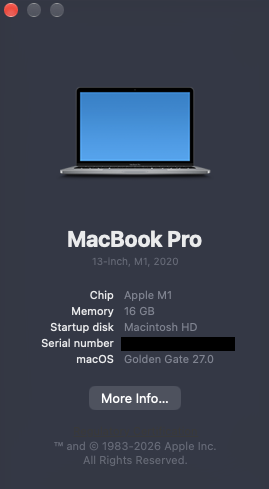
Last one: click the Apple logo → About This Mac, and confirm the chip (M1, M2, etc), RAM, and storage match what you paid for. Can’t get easier than that.
Worth the five minutes
Buying refurbished no longer means compromising, especially with tech prices skyrocketing year-on-year. Just run through these five checks to make sure everything’s in order, when your MacBook arrives.
For what it’s worth, this is the same standard we hold ourselves to. Every Swappie Refurbished MacBook goes through battery, spec, and quality checks before it ships, and comes with a warranty behind it, so even after you’ve run through your own checklist, you’re not on your own if something’s off. Buy smart, check your device, and get on with using it.
About the Author
Emmanuel leads organic growth at Swappie, where he’s worked for 4 years out of the Helsinki HQ. Outside of work, he’s into tech, music, lagers, and actively not mowing his lawn.